
How to Crop a Video in Adobe Premiere Pro
Why Do VHS Tapes Have Black Borders?
Digitized VHS footage almost always has black bars — on the top, bottom, or sides. They result from several factors: the analog sync signal overflowing into the image area, the mismatch between the original interlaced 4:3 format and the digital container, or slight misalignment of the playback heads.
Removing these bars improves the visual result and gives a cleaner image before exporting or sharing your videos.
Cropping with the Crop Effect in Adobe Premiere Pro
The Crop effect is found in the Effects panel under Video Effects > Transform > Crop.
Steps:
- Launch Premiere Pro and open your project, or create a new one.
- In the Project panel (Media Bin), import your digitized clip and drag it onto the timeline.
- Select the clip on the timeline.
- In the Effects panel, search for “Crop” and drag it onto the clip.
- In the Effect Controls panel, adjust the Left, Right, Top, and Bottom values until the black bars are gone.
- Check the result in the Program Monitor.
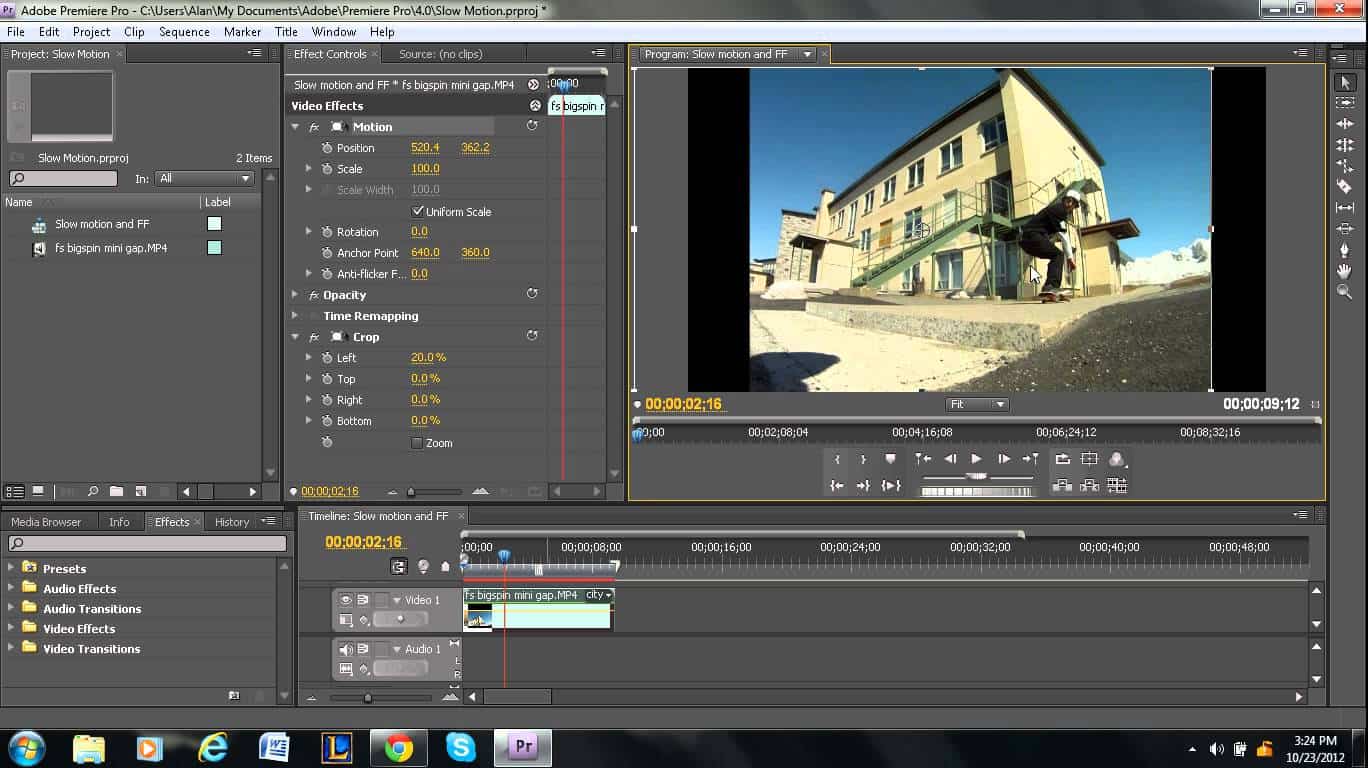
Practical Values
For most digitized VHS footage, cropping values between 2% and 5% on each side are sufficient to remove the black bars. Avoid cropping too aggressively — you risk cutting out image elements at the edges that are part of the scene.
If the bars vary from one shot to another, crop slightly more than necessary to ensure visual consistency across the entire file.
Scaling to Fill the Frame
After cropping, the image may no longer match your sequence dimensions (e.g. 720×576 PAL). To fill the residual space:
- Right-click the clip on the timeline > Scale to Frame Size.
- Or manually adjust the scale in Effect Controls > Motion > Scale.
Applying to Multiple Clips
If your project contains several clips from the same tape, the black bars are generally identical across shots. Copy the Crop effect from the first clip (right-click > Copy), select the other clips, then Paste Attributes (Ctrl+Alt+V) to apply the same values in one step.
Keeping consistent crop values across all clips matters: different margins between shots create a sense of visual instability during playback.
Prefer to have this process handled by a professional? Check our pricing, or contact me.